

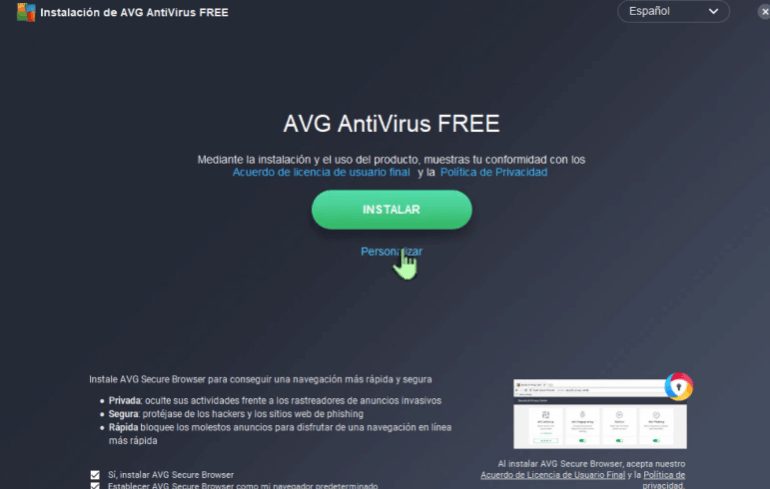
Installing AVG antivirus is a critical step in securing your computer, but sometimes you may not have access to the internet during installation. Luckily, AVG offers an offline installation option, allowing you to install the software without needing a live internet connection. Here’s a step-by-step guide to help you install AVG without the internet.
1. Download the AVG Offline Installer
Before you can install AVG without an internet connection, you need to download the offline installer on a device that has internet access.
Steps to Download the Offline Installer:
-
Go to the AVG Website: Visit the official AVG website.
-
Choose Your Product: Select the version of AVG you want to install (e.g., AVG AntiVirus FREE, AVG Internet Security, etc.).
-
Download the Offline Installer: On the product page, look for the option to download the offline installer. This will download the complete installation file, which does not require an internet connection.
Once the offline installer is downloaded, transfer the file to the device where you want to install AVG.
2. Transfer the Installer to Your Target Device
If you’re downloading the installer on a different device, you’ll need to transfer it to the computer you want to install AVG on.
Methods to Transfer the Installer:
-
USB Flash Drive: Copy the downloaded installer file to a USB flash drive, then plug it into the target device.
-
External Hard Drive: If the installer file is too large, use an external hard drive to transfer the file.
-
Network Share: If both devices are on the same network, you can share the file via a local network.
3. Run the Offline Installer
Once the installer file is on the target device, it’s time to begin the installation process.
Steps to Run the Installer:
-
Locate the Installer File: Open the location where you transferred the installer (e.g., USB drive or local folder).
-
Run the Installer: Double-click on the offline installer file to start the installation process.
-
Grant Administrator Permissions: If prompted, click Yes to allow the installation to make changes to your device.
4. Follow the On-Screen Instructions
The installation process will proceed with no internet connection required. Simply follow the on-screen instructions to install AVG antivirus.
Steps to Install AVG:
-
Select Installation Options: You’ll be given options such as the installation location and whether to install additional tools or features. Choose your preferred settings.
-
Agree to Terms and Conditions: Read through the terms and conditions and click Agree to proceed with the installation.
-
Wait for Installation to Complete: The installer will now begin copying files and setting up AVG. This process may take a few minutes.
5. Restart Your Computer
Once the installation is complete, you’ll be prompted to restart your computer. Click Restart Now to finish the installation and apply changes. After restarting, AVG should be fully installed and ready to protect your computer.
6. Activate Your AVG Account
Even though AVG can be installed without an internet connection, you’ll still need internet access to activate your product if you’re using a paid version.
Steps to Activate Your AVG Account:
-
Connect to the Internet: Once AVG is installed, make sure your device is connected to the internet.
-
Open AVG: Launch the AVG program by double-clicking the AVG icon on your desktop or taskbar.
-
Sign In: If you have an AVG account, click on Activate or Log In to enter your credentials.
-
Enter Activation Code: If you purchased a paid version, you will need to enter the activation code you received during purchase.
Once activated, AVG will begin working and providing protection against malware and other threats.
7. Update AVG
To ensure that your AVG software is up to date and fully effective, connect to the internet and run an update.
Steps to Update AVG:
-
Open AVG: Launch the AVG program.
-
Check for Updates: Go to the Menu and select Settings, then click Check for Updates.
-
Install Updates: Follow the prompts to install any available updates.
Conclusion
Installing AVG without an internet connection is simple and efficient using the offline installer. By following these easy steps, you can set up AVG on your computer even if you don’t have internet access during installation. Once installed, you can activate and update the software when an internet connection is available to ensure your system is always protected.


